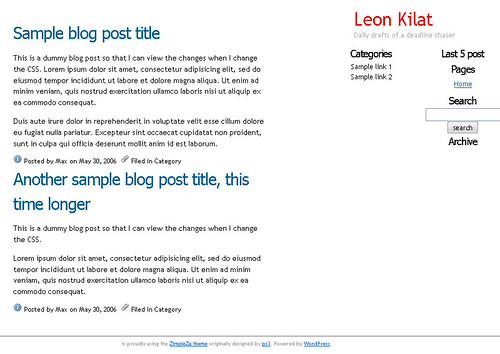
It has been more than a year since I used Dreamweaver to design a site. I’ve mostly been running sites using PHP-MySQL content management systems (CMS) and depend on the thousands of ready-made themes and templates to control the site design. For the occasional static page, I use Nvu for visual editing. But after reading this article on SitePoint, I wanted to try using Dreamweaver to edit one of the templates I’m using.
WordPress, like most PHP-MySQL CMS, uses template files to control the appearance of websites. The webpage is assembled from several PHP files controlling specific aspects of the site like the header, sidebar, main content and footer.
To use Dreamweaver to edit or customize WordPress themes, you need to combine these different PHP files into one page so that you can immediately view, while editing the codes, how the page would appear.
For this post, I edited a minimalist WordPress theme called Zimpleza.
The process
Go over the files of the WordPress theme you want to edit and study how it controls your blog’s appearance. Take note of how the pages, index.php (for the main page) and single.php (for individual blog posts), call the different template files.
The header is called first. What is called next depends on the WordPress theme you are using: some call the main content next then the sidebar then the footer. Other themes call the sidebar first then the main content and then the footer.
Create a new folder and copy into it 1.) the style.css of the WordPress theme you want to edit, and 2.) the folder containing the images.
Create a new HTML document in Dreamweaver and save it into the folder you’ve just created. Go to Code View and paste into it these lines:
<!-- Header part goes here -->
<!-- /Header part ends here -->
<!-- Main content here -->
<!-- /Main content ends here -->
<!-- Sidebar content here -->
<!-- /Sidebar content ends here -->
<!-- Footer content here -->
<!-- /Footer content ends here -->
The lines are code comments to guide you as you copy code from the different PHP files for editing and transfer these back again after you’ve finished customizing the design. Just re-arrange the lines if the WordPress theme you want to customize calls, for example, the sidebar before the main content. (click on photos to view larger images)
Copy codes
Start copying codes from the different template files: the header.php, sidebar.php and footer.php. For the main content, copy the code that displays your blog content in index.php. The first thing you need to change is the location of the CSS file in the header. WordPress themes point to the CSS file using the line:
<link rel="stylesheet" type="text/css" media="screen" href="<?php bloginfo('stylesheet_url'); ?>" />
Just change <?php bloginfo('stylesheet_url'); ?> to style.css so that your document can locate the stylesheet.
After that, change the dynamic calls for such things as your blog name and sub-title and add dummy headlines and article text.
Most WordPress themes that display the blog title as text have the following code: <h1><a href="<?php echo get_settings('home'); ?>/"><?php bloginfo('name'); ?></a></h1>
What this does is display your blog name and link it to your main page. To view how the blog name is rendered, just delete <?php bloginfo('name'); ?> and type in your blog name. Do the same thing for the blog tagline or subhead, which is displayed by the code <?php bloginfo('description'); ?>.
Dummy content
In the main content, just delete the conditional statements found in index.php and retain only the code that displays the blog post.
Delete these lines:
<?php if (have_posts()) :?>
<?php while (have_posts()) : the_post();?>
<?php endwhile; ?>
<?php else : ?>
<h2>Not Found</h2>
<div class="entrybody">Sorry, but you are looking for something that isn't here.</div>
<?php endif; ?>
</div>
Place some dummy headlines and text to preview changes you might want to do with the stylesheet or the HTML code. The blog post headline is called by <?php the_title(); ?>, just delete this and type in a dummy headline. To enter dummy text for the blog post article body, replace <?php the_content('Read the rest of this entry »'); ?> with some dummy text. Enter dummy links and headlines in your sidebar. 
After you enter the dummy text, you now have a mock up design of your WordPress theme that you can use as base for customization. With this, you can instantly preview results of changes in the CSS or HTML codes. After you’ve finalized the design, copy the new codes to the different template files and save the CSS. Go over the codes again and replace the dummy text you placed with the appropriate WordPress template tags for the blog title, blog post headline and content.
To tweak your WordPress theme even further, you might want to check my repository of pieces of great WordPress theme codes, feel free to suggest snippets that should be added there. I still have to finish the second part of my article: How to create a WordPress theme: A guide for the design-challenged non-geek. I’m thinking of finishing part 2 by next week (fingers crossed).


Pingback: Pig Pen - Web Standards Compliant Web Design Blog » Blog Archive » Edit WordPress Themes With DreamWeaver
Pingback: aNieto2K » Blog Archive » Como editar themes con Dreamweaver
Pingback: Edit Wordpress Themes using Dreamweaver by Blogging Pro
Pingback: un labeled » wordpress on dreamweaver
Pingback: Poldo’s Procrastination » Edit WordPress Themes Using Dreamweaver
Pingback: Editing Wordpress themes using Dreamweaver - Cash in on Google Adsense
Pingback: catharsis » i’m a whore
Pingback: dexter´s laboratory » wordpress e dreamweaver
Pingback: Like Your Work » Blog Archive » links for 2006-06-10
Pingback: Bloganbieter.de » Blog Archive » Howto: Wordpress Theme mit Dreamweaver bearbeiten
Pingback: Vivre du Web » Modifier le thème d’un site WordPress avec DreamWeaver
Pingback: links for 2006-06-18 — 7 seconden — Cuiusvis hominis est errare
Pingback: for better or for worse » Blog Archive » Daily Links
Pingback: willkoca » Archive » links for 2006-06-20
Pingback: otro blog más » Unos cuantos de desarrollo web (XCV)
Pingback: A few words form our sponsor » Links to some cool WordPress Pages
Pingback: Discombobulate » Blog Archive » Converting HTML template to Wordpress Theme
Pingback: Discombobulate » Converting HTML template to Wordpress Theme
Pingback: Discombobulate » Converting HTML template to Wordpress Theme (Part 1)
Pingback: Dreamweaver Daily Blog » Blog Archive » Edit Wordpress Themes with Dreamweaver
Pingback: 春江花月夜 » Blog Archive » links for 2006-09-20
Pingback: Juglar :: Plantillas para WordPress :: December :: 2004
Pingback: How to convert any web template into a WordPress theme | Leon Kilat ::: The Cybercafe Experiments
Pingback: Alex Shalman . com » More on Wordpress
Pingback: wtr’s blog » Blog Archive » links for 2006-11-20
Pingback: Alex Shalman . com » Blog Archive » Alex Shalman . com : Making of a Site
Pingback: After the Net » Blog Archive » links for 2006-12-27
Pingback: DeGeT.NeT » WordPress temaları nasıl yapılır?
Pingback: Oberlehrer.de » Wordpress-Themes mit Dreamweaver bearbeiten
Pingback: Tutorial Roundup: Wordpress Theme » Bloganbieter.de
Pingback: giantkicks.com » How to edit Wordpress themes using Dreamweaver, Leon Kilat ::: The Cybercafe Experiments
Pingback: Articoli e risorse per imparare a creare un tema per Wordpress | MondoBlog
Pingback: Having a Helluva time using Dreamweaver for Wordpress Sites - WickedFire - Internet Marketing Affiliate Webmaster Forum
Pingback: Convert HTML to Wordpress Theme part 1 · Techbites on Discombo
Pingback: Adobe Dreamweaver Tutorials | Smashing Magazine
Pingback: at FW|test
Pingback: Adobe Dreamweaver Tutorials | 2kreative.net
Pingback: Julians.name » Blog Archive » links for 2007-05-11
Pingback: Open Source Inspiration » Blog Archive » WordPress, CSS, and Dreamweaver
Pingback: Steve Miller’s Web Sites of Interest » links for 2007-07-17
Pingback: tmthai.com All you need for the Website!!!!» Blog Archive » Adobe Dreamweaver Tutorials
Pingback: Internet Marketing - About Internet Marketing, Making Money Online, Writing Article, Niche Marketing, Blogging and Fun Stuff » Wordpress Tutorial for Youngbies
Pingback: noranscooter.com » Blog Archive » [wordpress tip] How to edit wordpress themes using dreamweaver
Pingback: LinusLin.com » Blog Archive » How to design wordpress theme using Dreamweaver (Beginning, Intermediate)
Pingback: Marc Ashwell » Blog Archive » links for 2007-09-07
Pingback: Adobe Dreamweaver Tutorials - Article Save
Pingback: Risorse Wordpress | Quando La Moto diventa Passione...
Pingback: Tutto Il Mondo Di Wordpress In Una Pagina, La Più Grande Collezione Di Link E Di Risorse Su Wordpress disponibile sul Web | MondoBlog
Pingback: Editar themes de wordpress utilizando dreamweaber - favoluxe
Pingback: Recursos y Tutoriales » Blog Archive » Dreamweaver tutoriales
Pingback: Cambiando estilos « Dianasolapas blog
Pingback: 国外最好的wordpressåˆå¦è€…æ–‡ç« ï¼ˆåŽŸæ–‡ï¼‰ | ç²¾åŽä¹‹å®¶|HIGHTHOUSE
Pingback: How to design your own Wordpress Theme | The Webdesign Studio
Pingback: How to edit the Wordpress theme using Dreamweaver | INTERNET TECHIES
Pingback: diigo 02/02/2009 (a.m.) | synapsenschnappsen
Pingback: 50 Wordpress Resources « Blog37
Pingback: Best of Wordpress Beginner Articles and Plugins « the gypsy
Pingback: Adobe Dreamweaver Tutorials | Web design, graphic design resource and JavaScript code library
Pingback: 250 Wordpress Tutorials
Pingback: Adobe Dreamweaver Tutorials | System Web Design Blog
Pingback: 30 WordPress Development Tutorials at BLOG GRAPHIC DESIGN
Pingback: Editar themes WordPress con Dreamweaver | Ayuda WordPress
Pingback: 30 WordPress Development Tutorials | SEO & Web Design
Pingback: 300多ç§å¯å¸®ä½ æˆä¸ºWordPressä¸“å®¶çš„èµ„æº | Shawn's Home